
Have you ever thought about apps tracking your location and activity? Well, yes, the popular Google Maps, Search Assistants use location to update you regarding traffic, recommend nearby destinations, show personalized results and ads.
While Google’s approach is helpful for many, not everyone is comfortable being tracked. Wait…Let us tell you! There’s good news! Here’s how to stop Google tracking your location and activity with quick and simple steps.
Our curated guide shares beginner-friendly steps you can follow on Android, iPhone, and web browser. Here we go!
Why Does Google Track Your Location and Activity?
Google aims to organize the world’s information to make it accessible and helpful to all. Location information plays an important role in driving directions, showing restaurant results, including nearby places in search results, and making your experience helpful across Google. This feature serves different purposes. It depends on your device, Google Account-level settings, and interactions that track your location on the go.
Some examples are:
- Location data
- Search history
- Web and app activity
This data helps Google personalize and improve its services. However, you can limit it.
How Does Google Know My Location?
Google knows your location based on the products you use and the settings you choose. Location information comes from your device’s IP address, GPS, Bluetooth, Wi-Fi network, saved activity on Google sites and services, and the home and work addresses you’ve saved. Both Android and iOS mobile devices have app location permissions that you can turn on or off. It uses your location to provide location-based features and services.
How to Stop Google Tracking Your Location and Activity: Unveiling 5 Practical Steps
1] Turn Off Web and App Activity
Web and App Activity is the main Google Account setting that provides personalized experience in some Google services, such as Google Store, Google Assistant, and Google TV. When this feature is on, Google saves your activity across Google services. This is one of the ideal to stop Google tracking your location.
To turn off this feature, follow the steps on web browser:
- Go to My Google Activity and sign in to your Google account
- Select the Web & App Activity option
- Click on the Turn off toggle
- You also get an option to turn off and delete activity
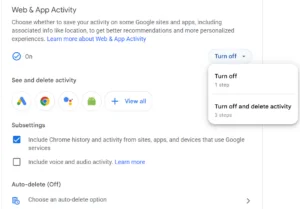
Turning off Web & App Activity prevents this setting from saving future activity, but it doesn’t stop all data collection.
2] Turn off Location Sharing and App Location Access
Randomly granting location access to any app is not the right approach. So, yes, you need to control which apps can access and use your device location. With so many apps on your mobile phone, limiting access is essential.
On Android:
- On your device, go to Settings.
- Select Location.
- Open App location permissions.
- Select the apps for which you don’t want to grant location permission.
- Select an option:
- Allow all time: The app can use your location any time.
- Allow only while using the app: The app can use your location only while you’re using it.
- Ask every time or allow when you share: The app will ask for location access and will continue to access it until you close it.
- Don’t allow: Do not allow to access your location.
On an iPhone:
- Open Settings
- Choose Privacy & Security
- Choose Location Services
- Select the right app and change its location permissions
- Choose an option if you want location to be accessed, all time, only while using the app or never.
Make sure to turn off Precise Location if the app only needs your main area, such as weather or news.
If you want to stop all apps at once: On the Location Services, turn off the Location Services toggle at the top. It will disable location for every app.
3] Delete Location and Information Related to Your Search Services History
Search services history saves your activity on Google, such as your searches, places you view in Google Maps, ads you click, and more. It also includes media such as images, video, audio, and recordings. The saved location metadata gets automatically deleted from your Search Services History after 30 days.
You can delete location and other information saved with your Search Services History, or turn it off by following the steps below:
- Visit My Google Activity
- Choose the Search Services History option
- You can turn off the toggle
- You can select the Turn off and delete activity option
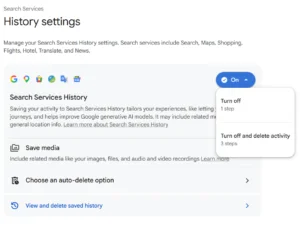
Also remember, deleting activity from Google Account does not remove information stored by apps, websites, or other services.
4] Check Your Google Account Privacy Dashboard
Google provides a centralized place to review all the privacy and security settings. Visit Google Account and open Data and Privacy. From here, you can review activity controls, location-related settings, and other account preferences. You can even check which devices are signed into your account.
5] Turn Off Google’s Timeline
The Timeline feature in Maps previously called Location History helps you remember places you have visited and the routes you take. The feature is off by default, so you are already safe, but it’s worth checking:
To turn off Timeline:
- Open the Google Maps app on your phone.
- Tap your profile picture.
- Select Your Timeline.
- Tap the Settings icon, then open Location and privacy settings.
- Turn Timeline off.
This feature is available on Android and iOS devices.
Also, to delete your existing Timeline data, follow the steps mentioned below:
- In the Location and privacy settings, go to the delete option.
- Choose Delete all Timeline data or Delete Timeline range to remove a specific period.
Summing It Up!
You now know how to stop Google tracking your location and activity which is more than just switching off one setting. You should carefully review Web and App Activity, Google Maps Timeline, personalized ads, YouTube history, and previously saved data. These changes give you more control over your digital footprint while letting you continue using Google services. A few simple decisions can help you make well-informed decisions about your personal data. It’s in your hands to grant tracking access wisely, with privacy concerns in mind.
To read more tech-related blogs, visit our website now.
FAQs
1] How to delete Google search history permanently?
Answer: Visit Google My Activity, select Delete, choose a time range, and click Confirm. This removes eligible saved activity from your account; however, it may not delete records held by other services.
2] Does incognito mode stop Google from tracking my activity?
Answer: No. Incognito mode limits what Chrome saves locally after the private session ends.
Recommended Reading:
Setting Up Your Google Business Profile: Step-by-Step Guide
Benefits of Augmented Reality based Google Maps for Business
DV360 vs Google Ads: Key Differences Every Marketer Should Know